Managing Extensions
Introduction
The management of extensions in Fynd Platform is straightforward and convenient. With a diverse range of functions and features, extensions offer a lot of options, and you can perform basic actions such as setting permissions, enabling/disabling, or uninstalling them.
View Extensions
To access the list of all installed extensions in your company, follow these steps:
-
Login to Fynd Platform.
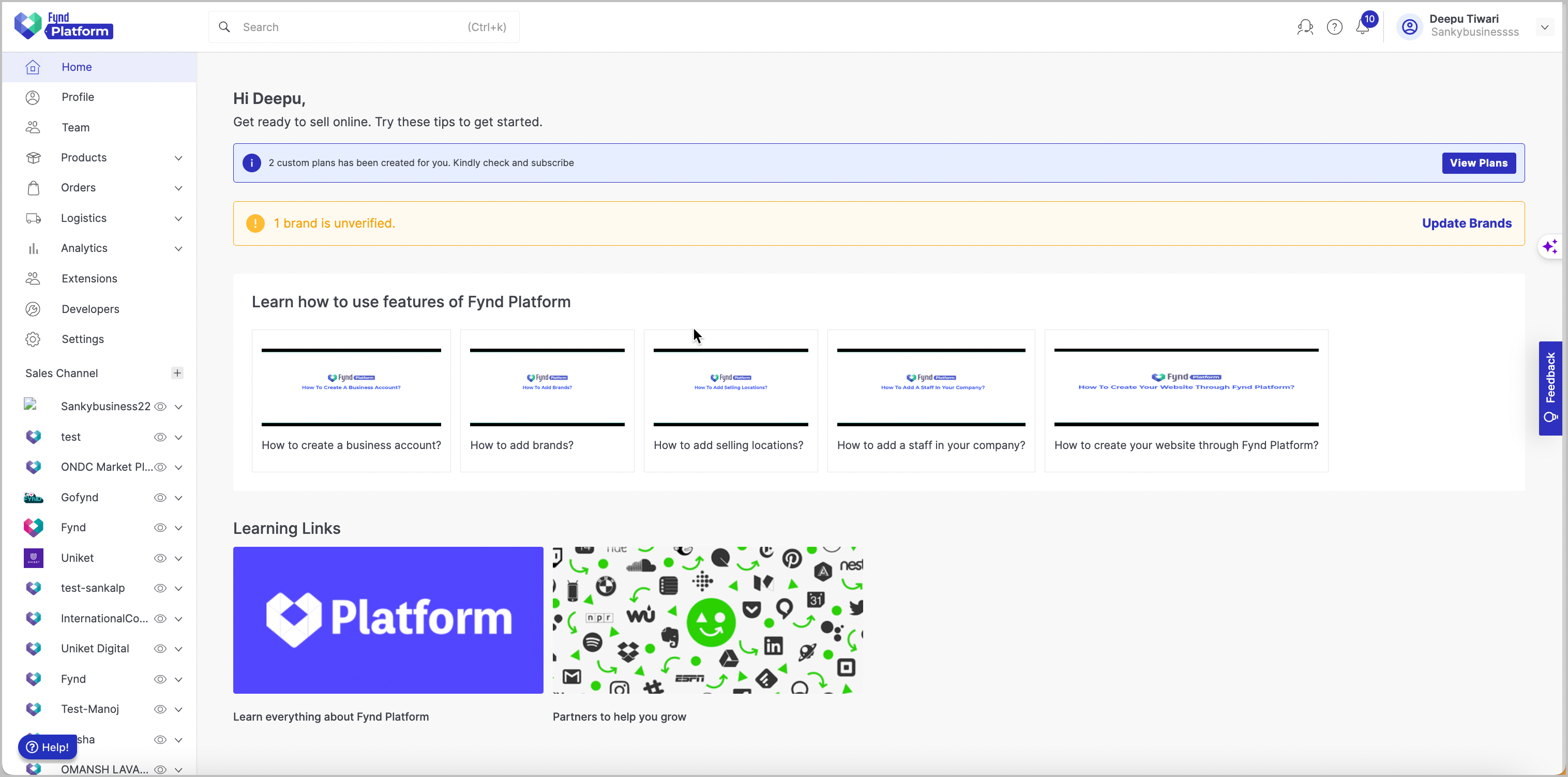
Figure 1: Fynd Platform Dashboard
-
Click Settings.
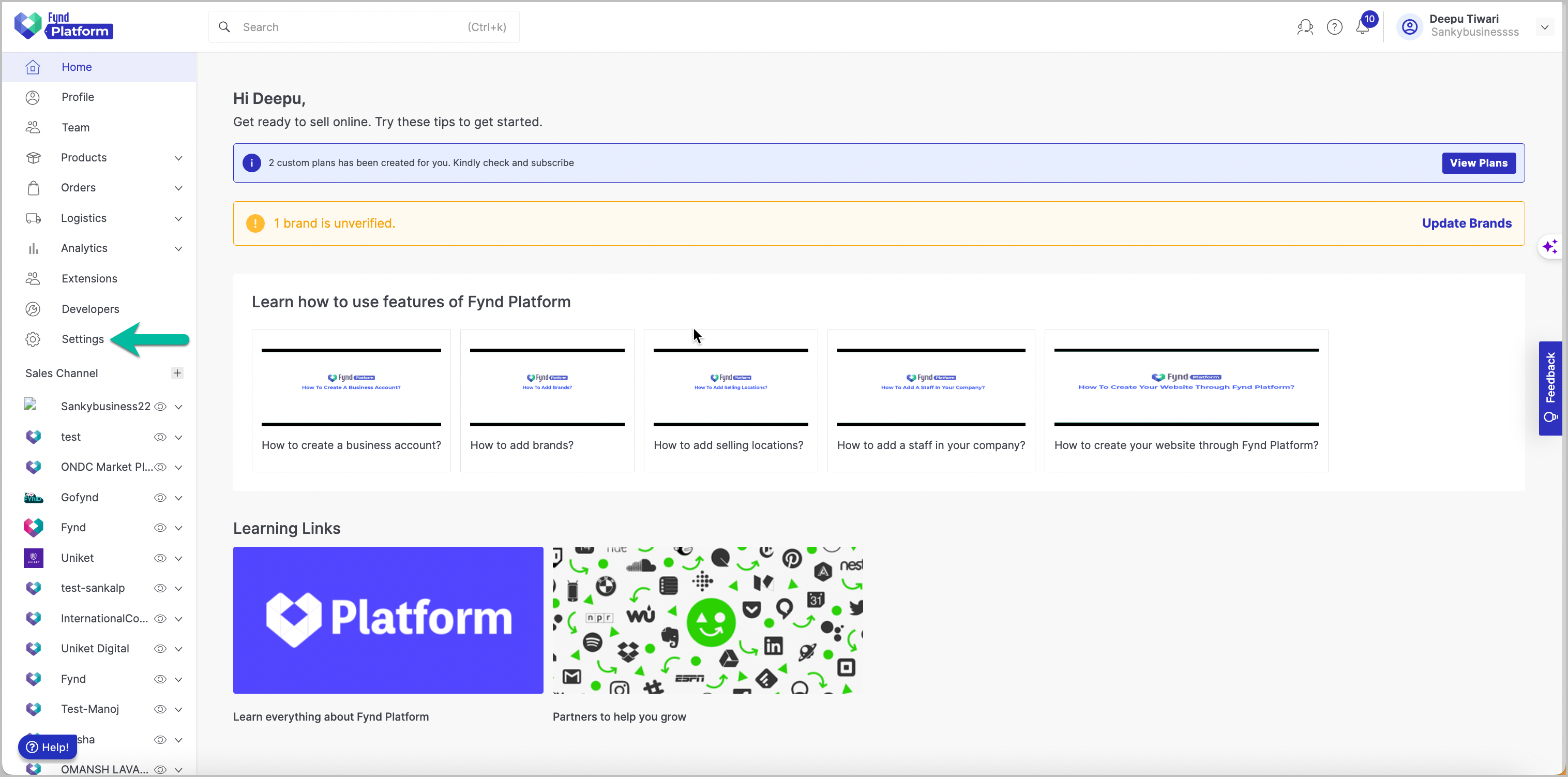
Figure 2: Clicking Settings
-
Go to Extension.
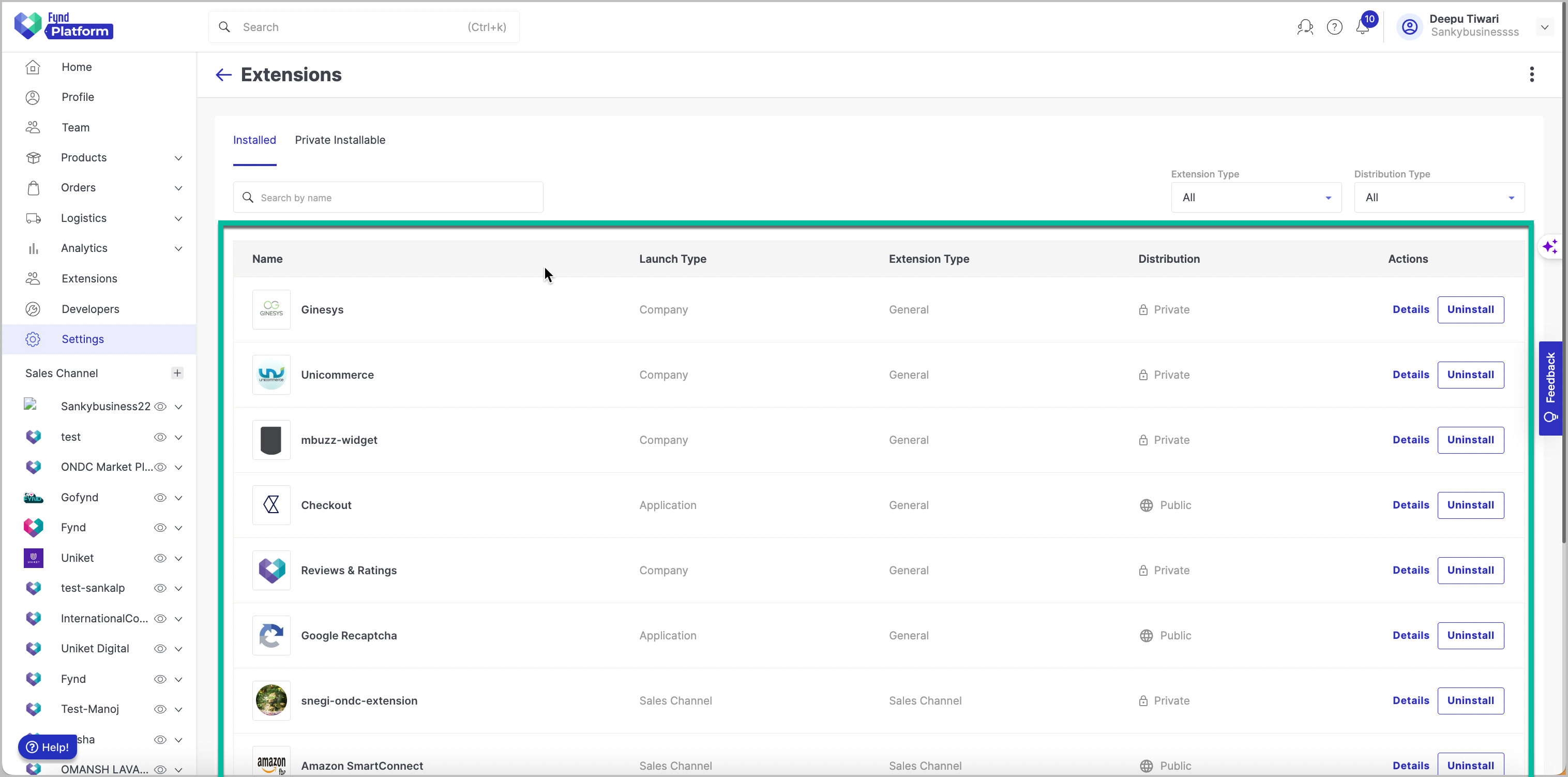
Figure 3: Clicking Extension
This will provide you with a complete overview of all extensions currently installed in your company.
Support
To reach out to the extension's support person or service and obtain assistance related to the extension, follow these steps:
-
Click Details for the specific extension you need support for.
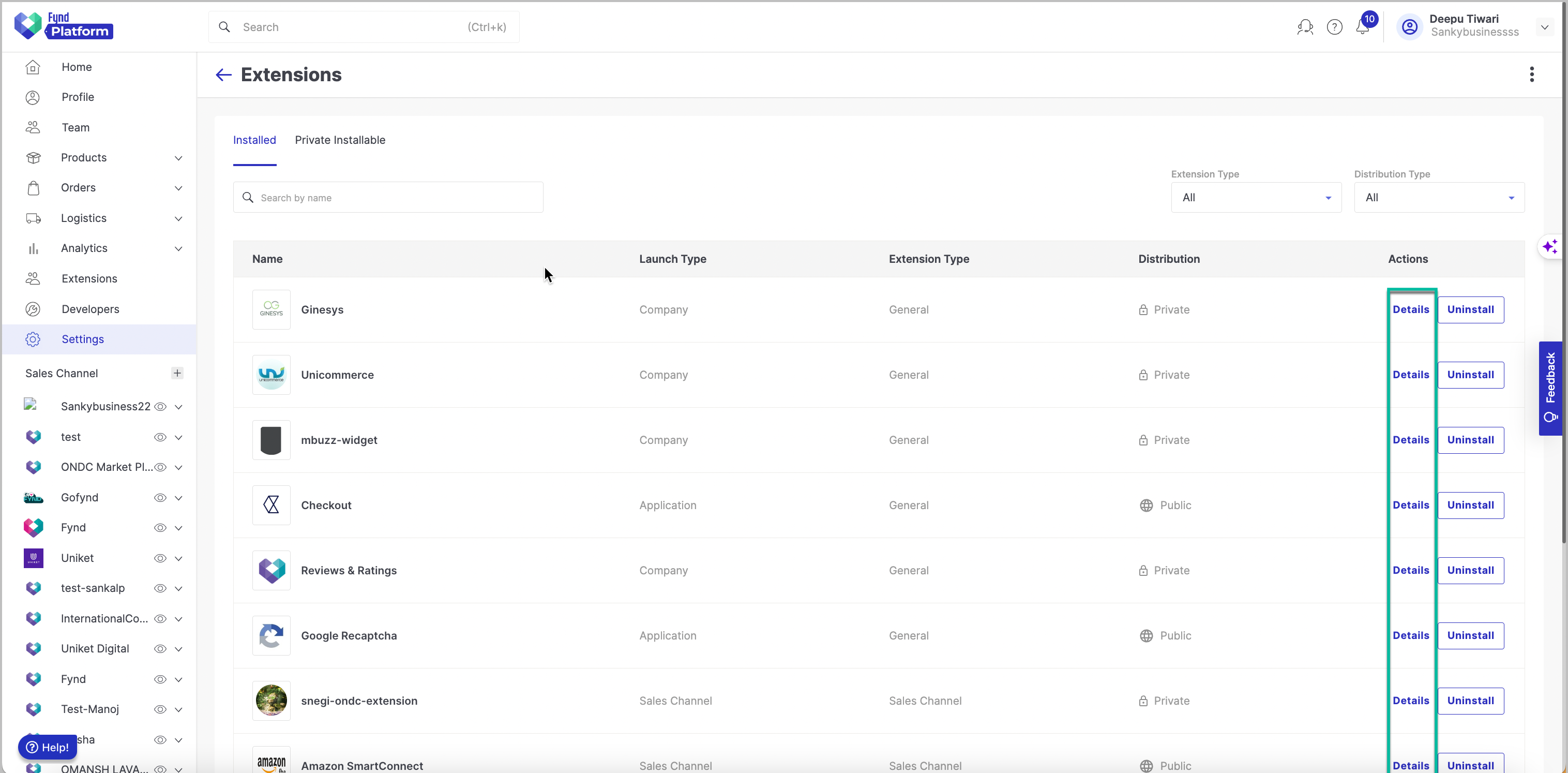
Figure 4: Clicking Details
-
Click Get Support.
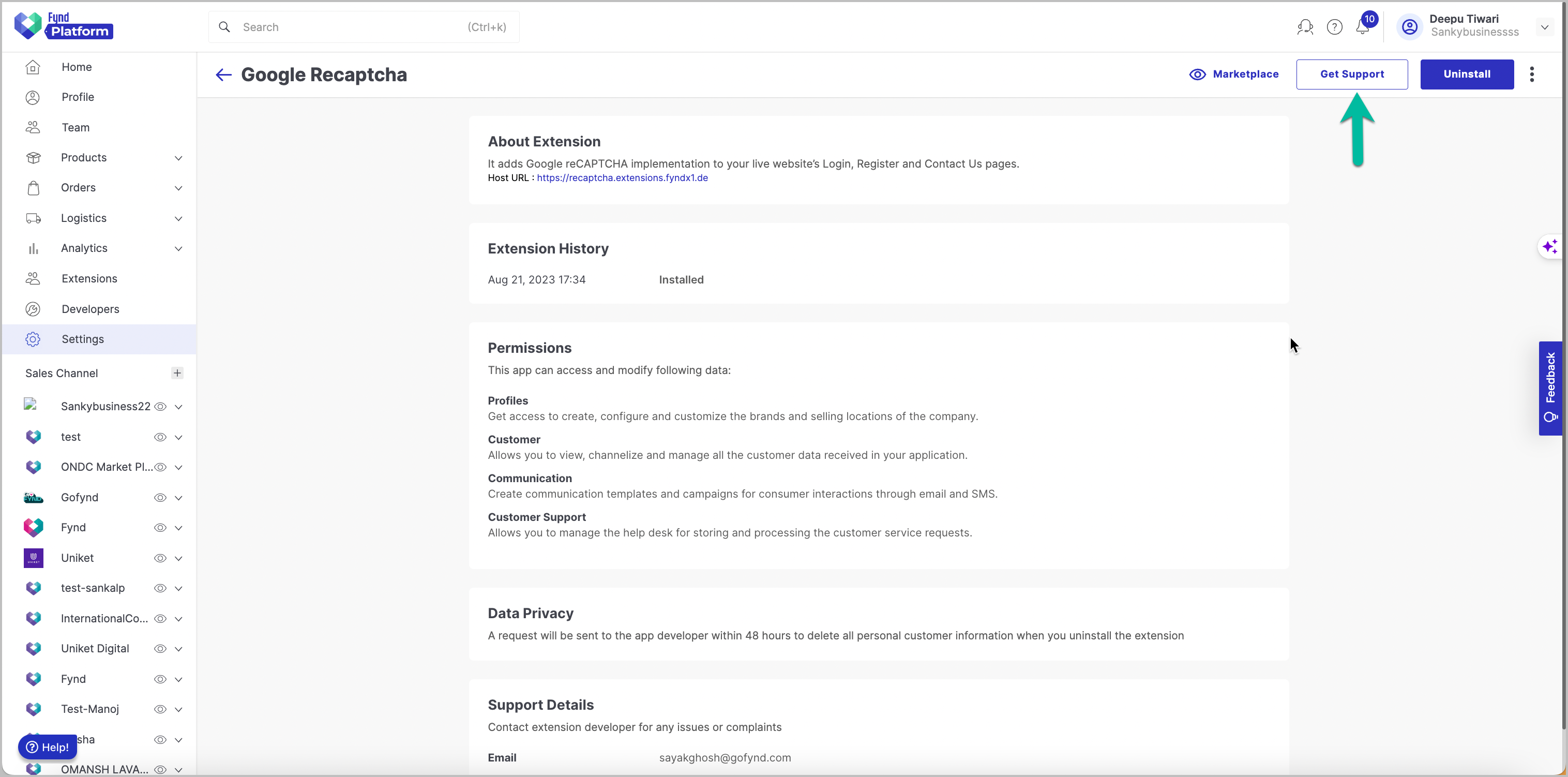
Figure 5: Clicking Get Support
This action will direct you to the Support Details section.
Set Permissions
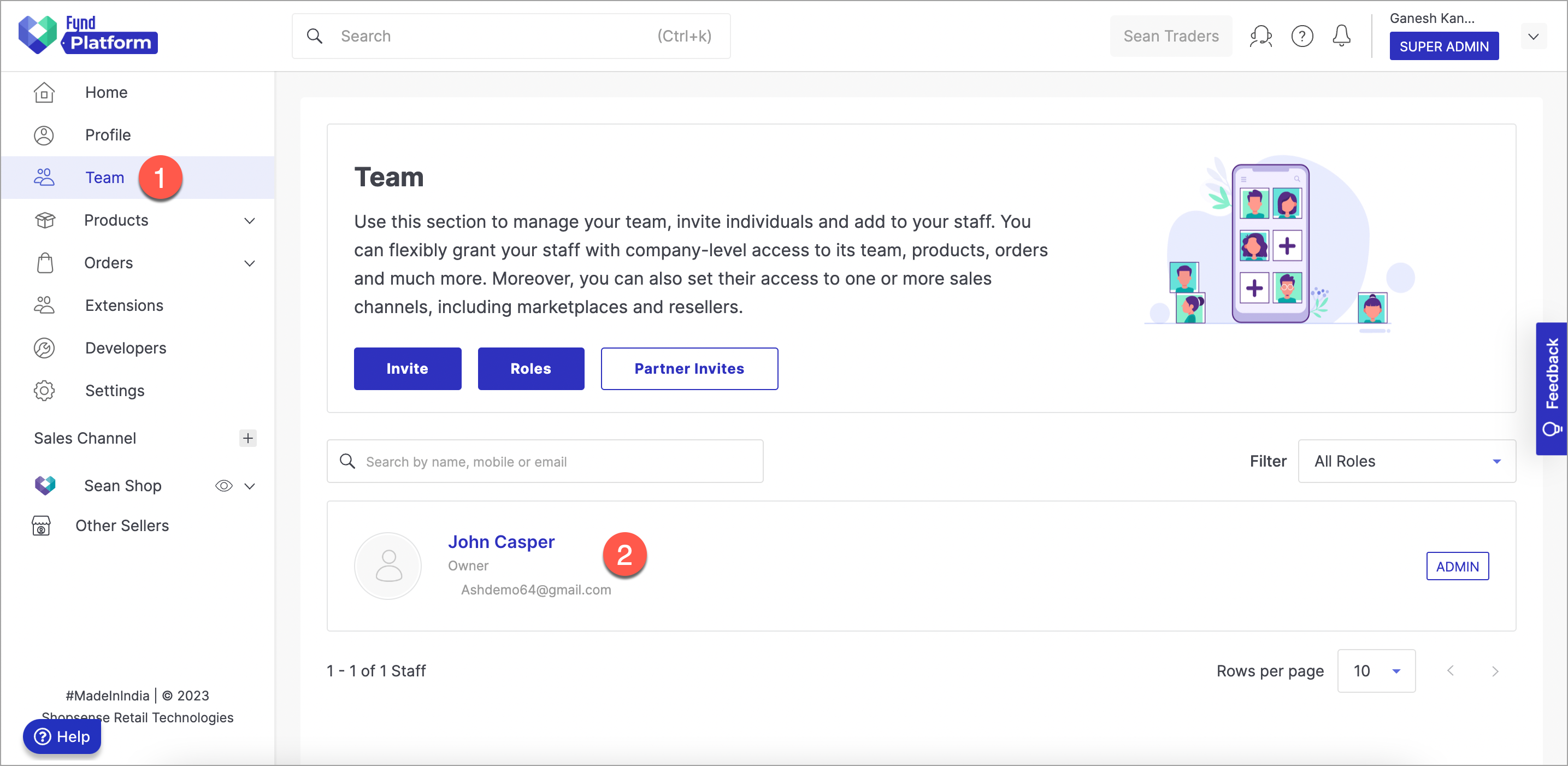
- Go to Team section in Fynd Platform.
- Open individual's entry to which you wish to set permissions.
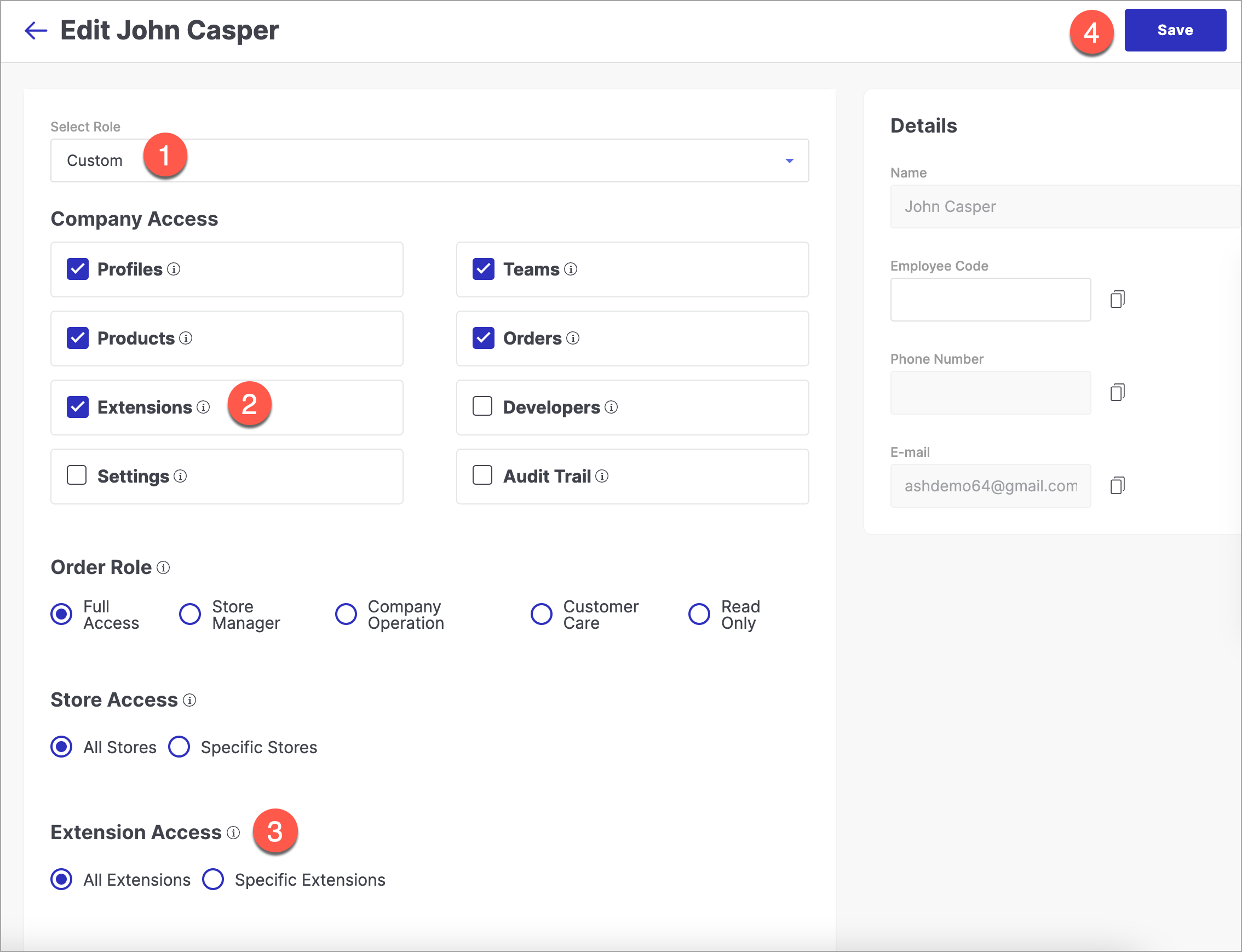
- Select a Custom role from the dropdown.
- Select Extensions option present in Company Access section.
- Extension Access - Choose either All Extensions or Specific Extensions option. Using this section, you can set permissions to access extensions for your team member.
- All Extensions - Choose this option if you wish to grant access to your team member for all extensions that you have installed in Fynd Platform.
- Specific Extensions - Choose this option if you wish to grant access to your team member for particular extensions.
- Save - Upon clicking this button, your configurations will be saved.
Activating/Deactivating Extension
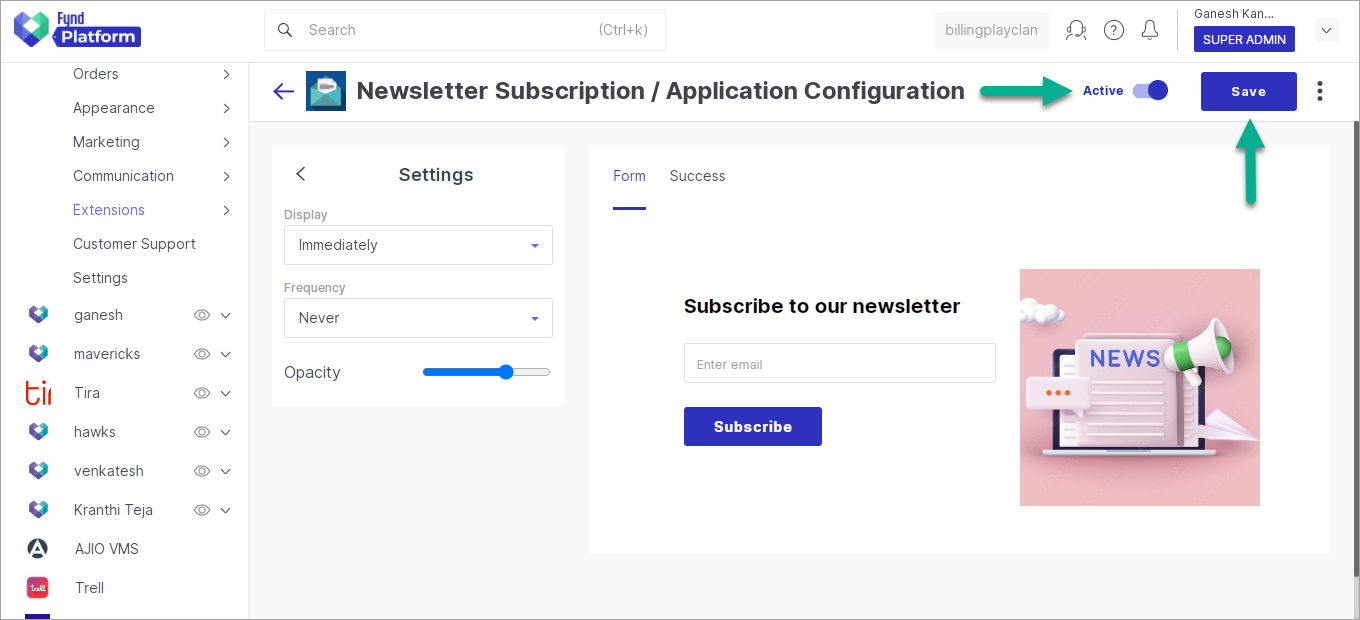
Turn ON the toggle button present on the top-right on the homepage of extension that you wish to activate and click Save.