Serial Coupons
This is an Application-level feature. You must select a sales channel first.
Introduction
Serial Coupons let you generate or upload thousands of unique coupon codes under a single campaign. Each code has its own usage tracking, governed by the usage limits you configure on the parent coupon (e.g., 1 use per customer, 3 total uses per code, or unlimited). This makes serial coupons ideal for influencer marketing, email campaigns, loyalty rewards, and partner collaborations where every recipient needs their own personal code.
Unlike a standard coupon (where every customer uses the same code), a serial coupon creates a parent coupon that defines the discount rules, targeting, validity, and usage limits — and then produces individual child codes that are distributed externally and redeemed individually. Each child code inherits the parent's usage limits and tracks its own redemption count independently.
Serial coupons support two code creation methods: auto-generation (the system creates random alphanumeric codes from a prefix you define) and CSV upload (you supply your own pre-generated codes). Both methods support up to 200,000 codes per coupon and include a built-in maker-checker approval workflow before codes go live.
Main Screen
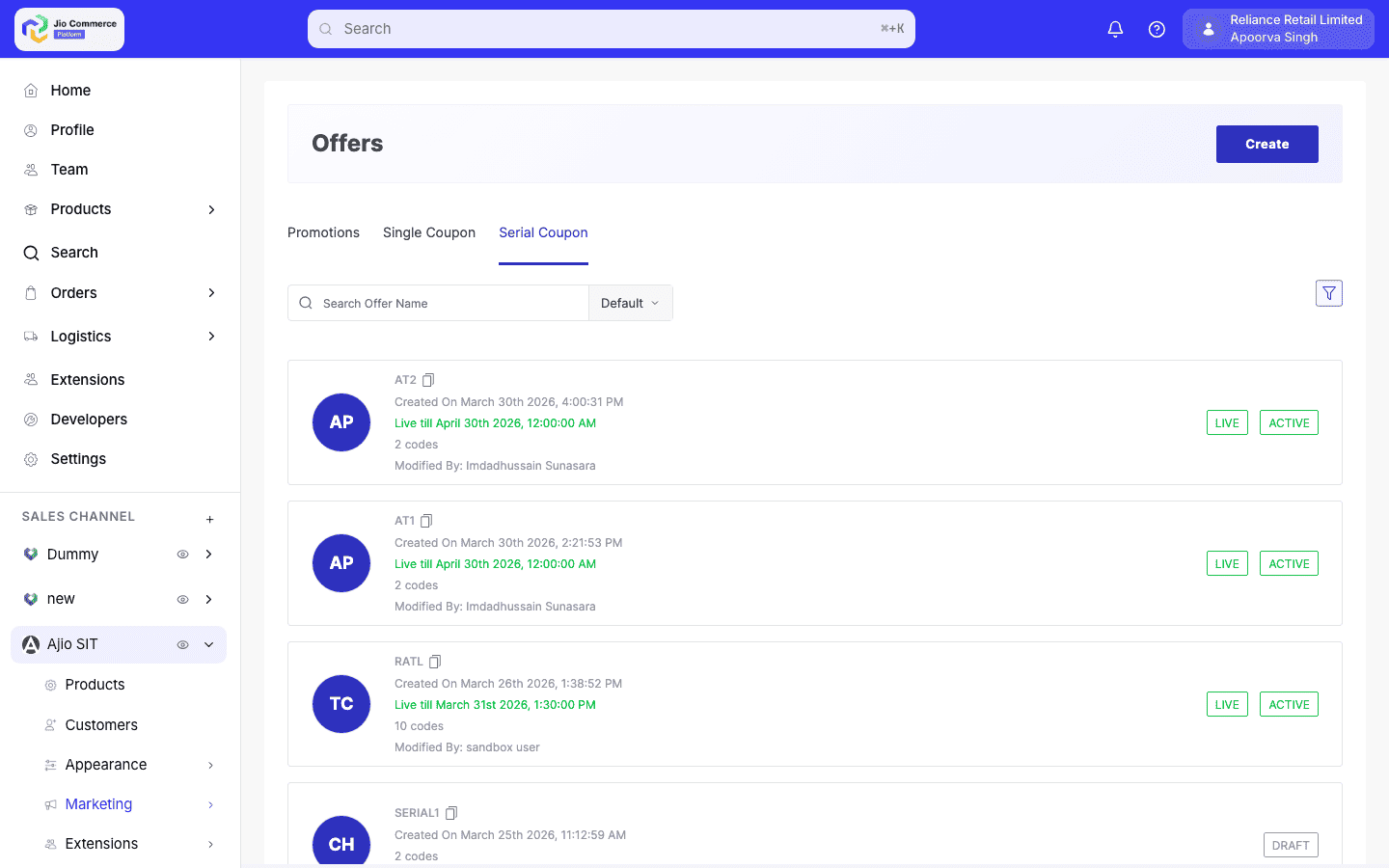
In this document, you will learn more about:
- Creating a serial coupon (auto-generated codes)
- Creating a serial coupon (CSV upload)
- Approval workflow (maker-checker)
- Exporting generated codes
- Updating an approved serial coupon
- Deleting a draft coupon
- Searching and filtering serial coupons
- Field reference
Creating a Serial Coupon — Auto-Generated Codes
Use this method when you want the system to create unique random codes for you. This is the most common approach for large-scale campaigns.
Step 1 — Navigate and Create
- In the platform sidebar, expand your sales channel under SALES CHANNEL, then navigate to Marketing > Offers. Select the Serial Coupon tab (refer fig. 1). Click the Create button (top-right corner).
Step 2 — Select Offer Type
-
In the Select Offer Type modal, three options appear as clickable cards: Promotion, Single Coupon, and Serial Coupon. Select the Serial Coupon card.
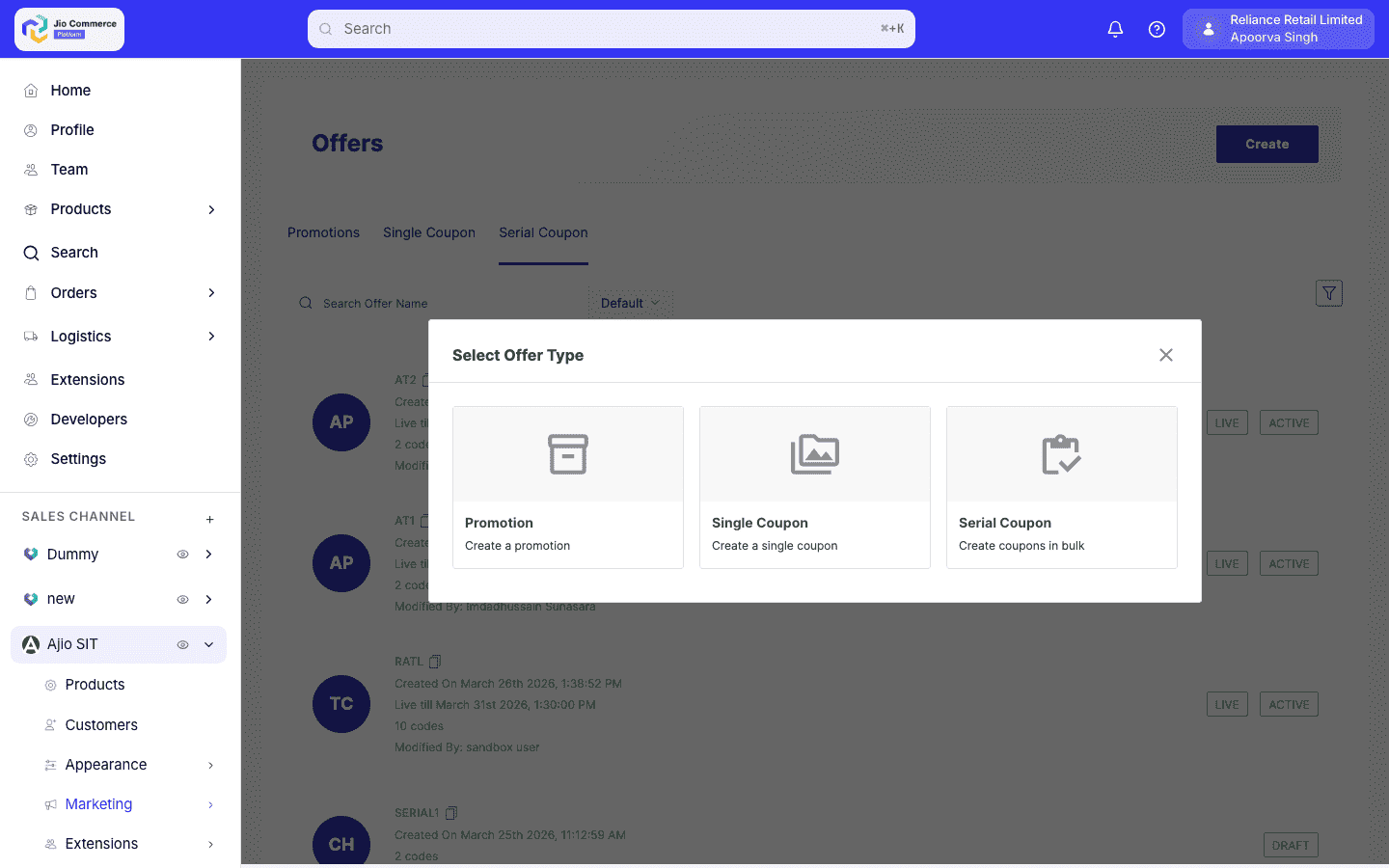
Figure 2: Select Offer Type modal showing Promotion, Single Coupon, and Serial Coupon cards
Step 3 — Select Discount Type and Proceed
-
A second modal appears: Select Serial Coupon Type. Choose the discount structure for your serial coupon from the options on the left. A description panel on the right explains the selected type. Available types:
- X Percentage Value — A fixed percentage discount on the effective selling price (e.g., 30% off).
- X Amount Value — A flat amount discount.
- Bundle Percentage Discount — A percentage discount applied to a bundle of items.
- Bundle Amount Discount — A flat amount discount applied to a bundle.
- Buy X amount and Get Y percentage off — Spend a minimum amount to unlock a percentage discount.
- Buy X Items Get Y Items Free — Buy a specified quantity and get additional items free.
- Buy X Items at Absolute Amount — Buy a specified quantity for a fixed total price.
After selecting a type, click the Select and Proceed button to continue to the creation form.
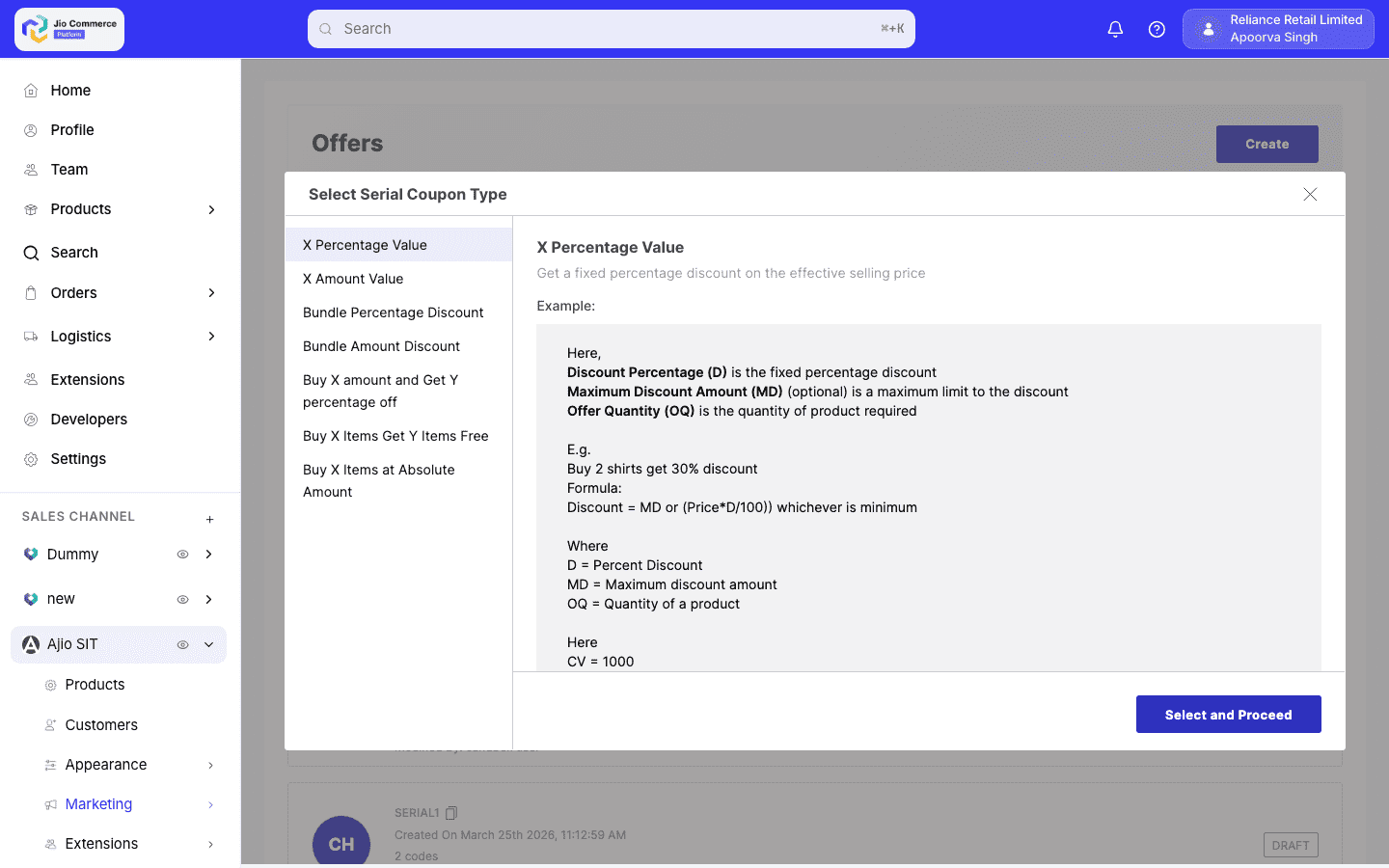
Figure 3: Select Serial Coupon Type modal showing discount type options with description panel and Select and Proceed button
Step 4 — Fill in Basic Details
The Create Offer form opens with a left sidebar showing all form sections: Basic Details, Offer Priority, Schedule, Restriction, Set Conditions, Set Actions, and Custom Data. You can click any section in the sidebar to jump to it.
-
Fill in the Basic Details section:
- Offer Type (read-only) — Shows "Serial Coupon", set automatically from your earlier selection.
- Prefix (optional) — A short string (up to 7 characters) prepended to every auto-generated child code (e.g.,
NY25produces codes likeny25a7k2m9x1). Makes generated codes recognizable and traceable. Cannot be changed after creation. - Code Creation Method — Select Generate Codes (the system auto-generates codes with prefix) or Upload Codes (upload a CSV with your own codes).
- No. of Coupons (required) — Enter the total codes to generate (1 to 200,000).
- Total Length of Coupon (required) — Choose between 6 and 15 characters. Longer codes reduce collision risk for large batches.
- Offer Title (required) — The display name of the offer shown under offers (max 50 characters).
- Offer Subtitle (required) — A secondary label displayed under offers.
- Offer Text (required) — The promotional text displayed under offers.
- Description (optional) — Detailed terms and conditions (supports rich text with formatting toolbar).
- Platform (required) — Select which platforms the offer is eligible on: Web, Android, iOS, or all.
cautionThe number of unique codes the system can generate is limited by the code length. For example, a 6-character code allows up to 2,176,782,336 combinations — more than enough for 200,000 codes. But if you set a very short length with a high count, the system will reject the request.
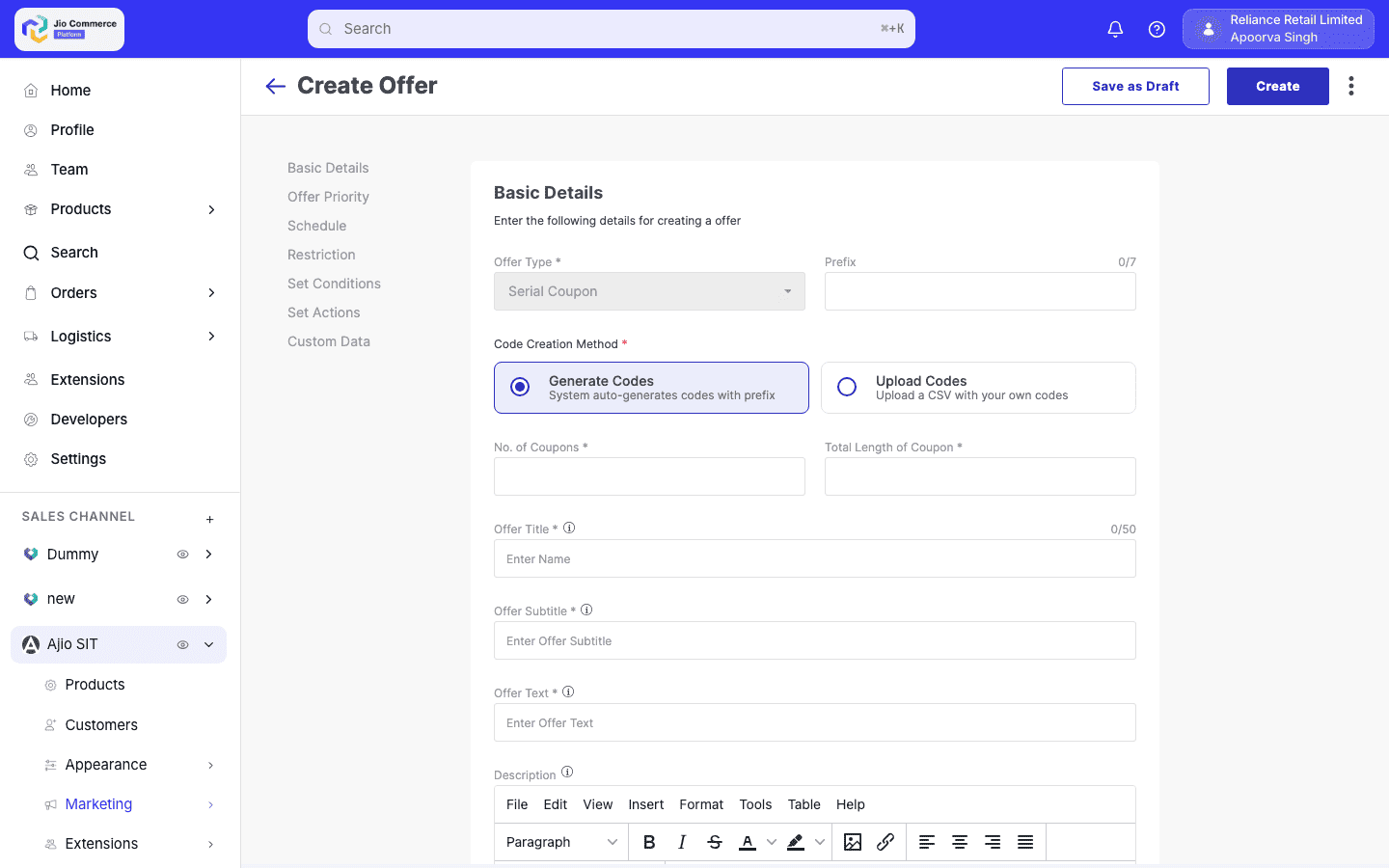
Figure 4: Create Offer form showing Basic Details with Offer Type, Code Generation, display fields, and Platform selection
Step 5 — Set Schedule
-
Configure the Schedule section:
- Live Now / Schedule Later — Toggle between making the offer active immediately or scheduling it for a specific date and time.
- Start time — When the coupon becomes active (date and time picker).
- End time — When the coupon expires. All generated child codes will also expire at this time. Click Add More to add additional schedule windows.
infoThe end date determines when all generated codes become invalid. Individual codes cannot have different expiry dates — they all follow the parent coupon's schedule.
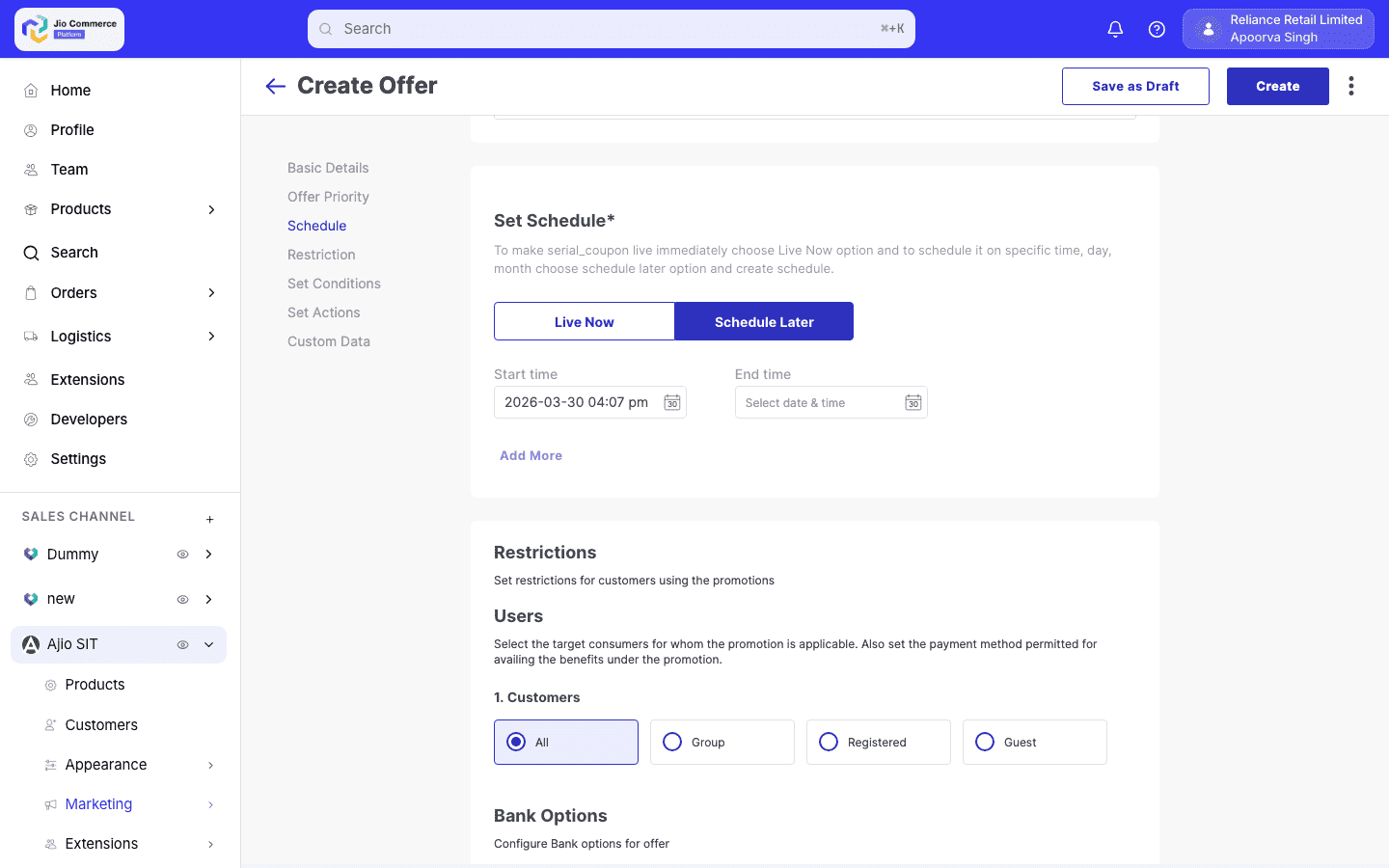
Figure 5: Schedule section with Live Now / Schedule Later toggle and date-time pickers
Step 6 — Configure Restrictions
-
Configure the Restriction section:
- Users — Select the target customers: All, Group, Registered, or Guest.
- Bank Options — Configure eligible payment methods: Cash on Delivery, Net Banking, Card, UPI, Wallet, PayLater, Advance Payment.
- Other Configuration:
- Max. usage of Offer — Maximum total redemptions allowed for the offer.
- Min. Item Price — Minimum item price for the offer to apply.
- Max. Item Price — Maximum item price for the offer to apply.
- Return — Allow customers to return products purchased under this offer.
- Cancellation — Allow customers to cancel products purchased under this offer.
- Bypass PLT — Allow the coupon to bypass the Product Level Threshold check and give the complete discount.
- Free Shipping — Waive the delivery fee for orders using this offer.
- Ordering Stores — Restrict the offer to specific stores.
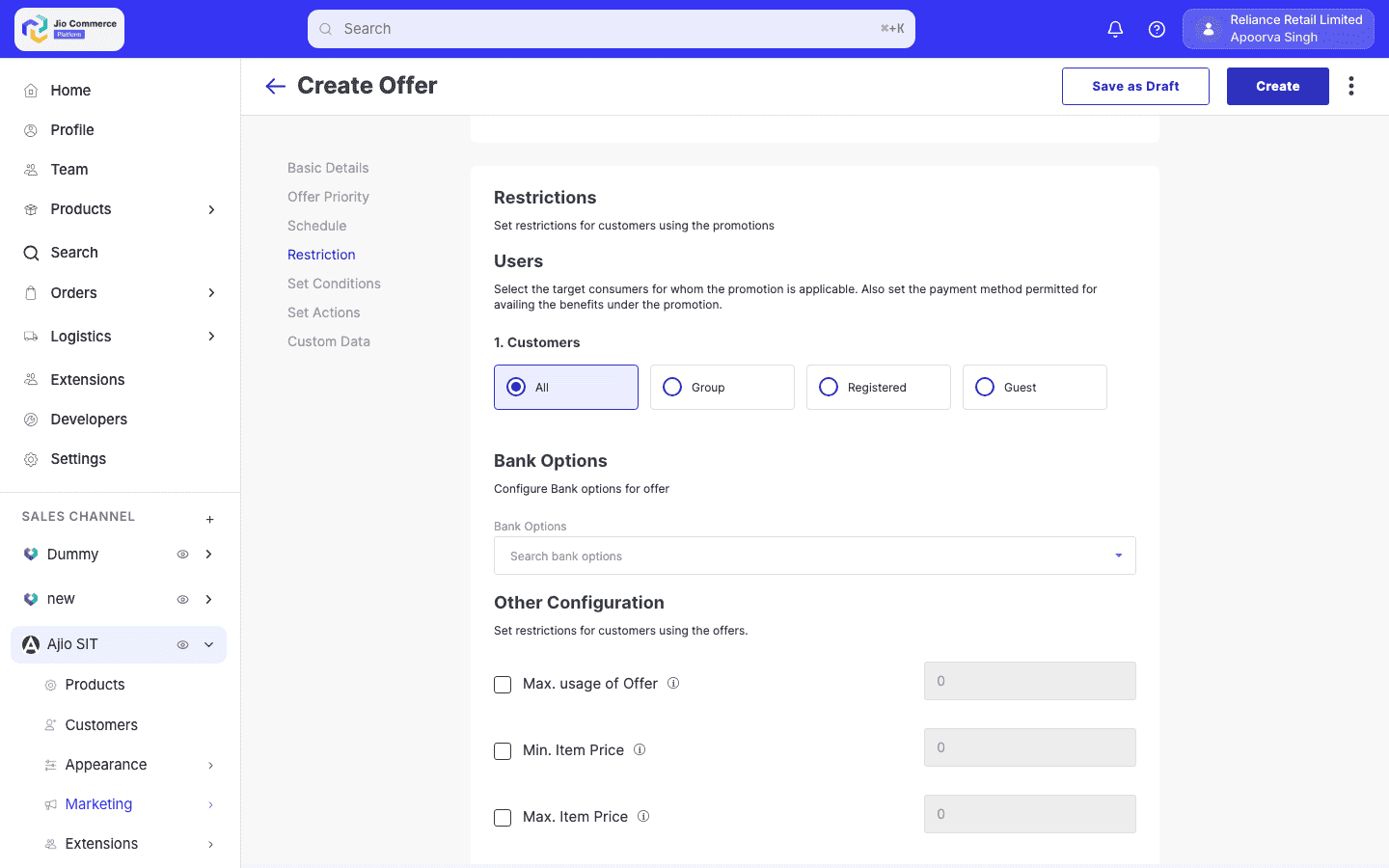
Figure 6: Restriction section showing Users, Bank Options, Other Configuration, and Ordering Stores
Step 7 — Set Conditions and Actions
-
Configure the Set Conditions section:
- Create Eligibility Rules — Define the conditions a cart must satisfy for the offer to apply. Click Available Parameters to see all options (Cart Item Quantity, Cart Total, Selling Location, Seller, Brand exclusions, Category filters, Department, Zones, Product Tags, Cart Type, etc.).
- Build rules using operators (>=, <=) and combine multiple conditions with AND. Click Add Rule to add more conditions.
- Add Products — Optionally restrict the offer to specific products.
-
Configure the Set Actions section:
- Tier 1 — Offer Construct:
- Discount Type — Matches the type selected in Step 3 (e.g., X Percentage Value).
- Discount Percentage — The discount value.
- Offer Quantity — The quantity eligible for the discount.
- Maximum Discount Amount — Optional cap on the discount.
- Buying Conditions / Applying Conditions — Define which rule(s) trigger this tier.
- Click Add Tier to create multi-tier offers (e.g., different discount levels based on cart value).
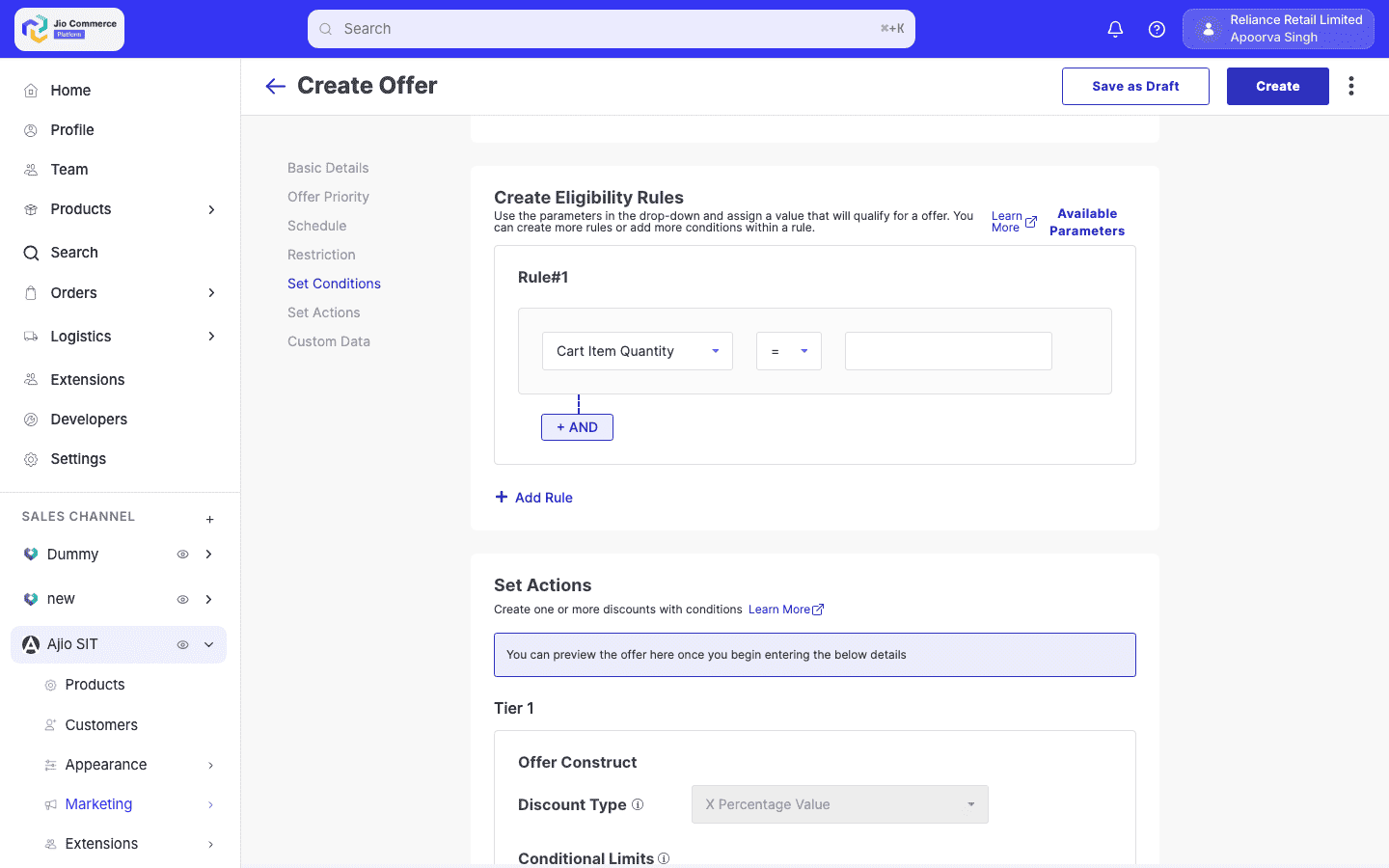
Figure 7: Set Conditions section with Eligibility Rules and Set Actions with Tier 1 Offer Construct
- Tier 1 — Offer Construct:
Step 8 — Custom Data, Tags, and Images
-
Configure the Custom Data section (optional):
- Custom Data — Add additional key-value data if custom data fields are configured.
- Tags — Add tags to make the offer easier to find during searches. Type and press Enter to create new tags.
- Images — Upload images for offer visibility:
- Logo — Square image (1:1 aspect ratio).
- Landscape Banner — Wide image (27:20 aspect ratio).
- Portrait Banner — Tall image (13:20 aspect ratio).
- Visibility and custom description — Set custom descriptions for PLP, PDP, and Cart pages.
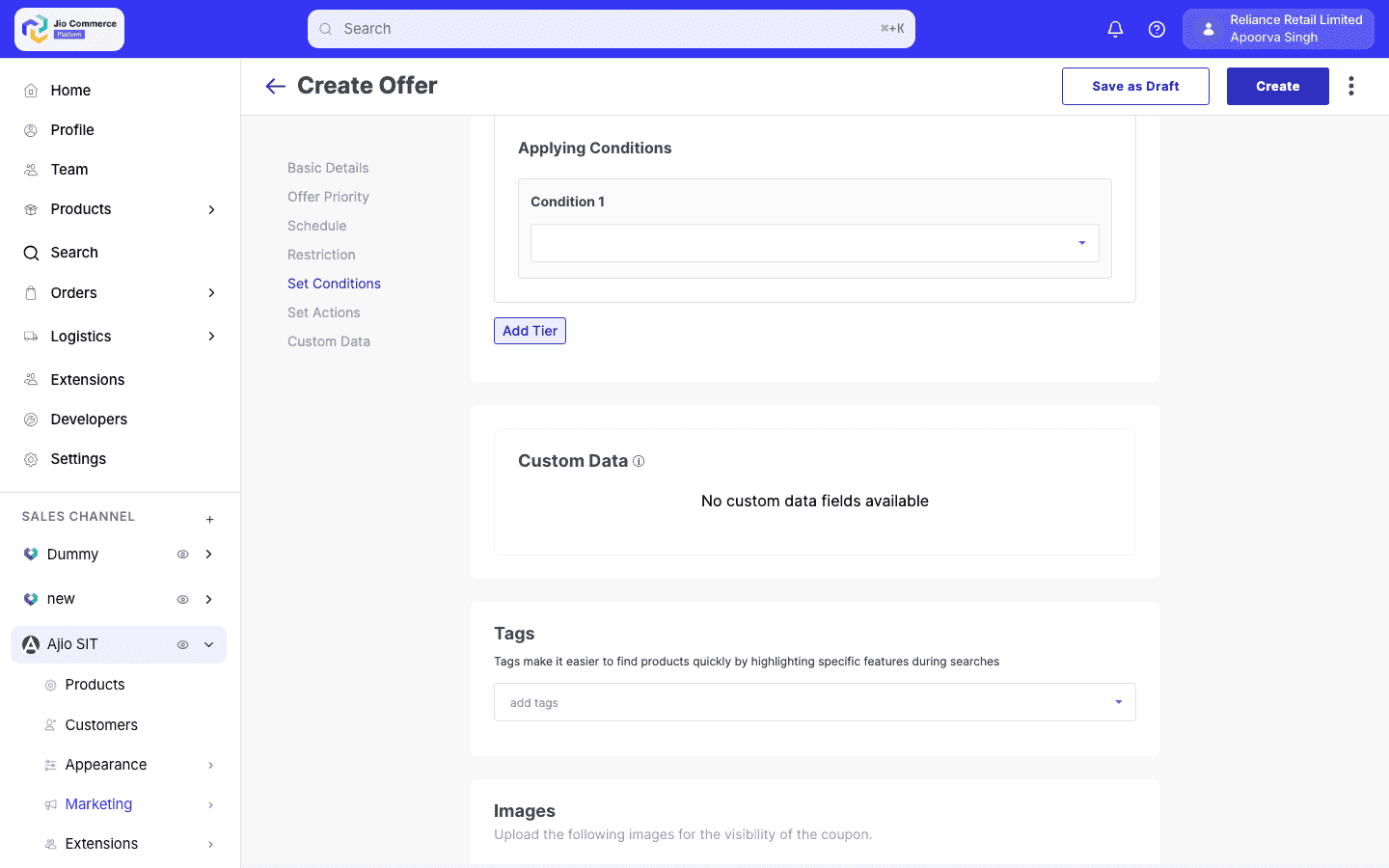
Figure 8: Custom Data section with Tags, Images uploads (Logo, Landscape Banner, Portrait Banner), and Visibility settings
Step 9 — Save or Submit
- Click Save as Draft to save without submitting, or Create to submit the coupon for review.
Codes are not generated until the coupon is approved by a verifier. Saving as draft or submitting for review does not create any child codes.
Creating a Serial Coupon — CSV Upload
Use this method when you have pre-generated codes from an external system (e.g., partner-provided codes, printed codes for physical distribution).
-
Follow Steps 1–3 from the auto-generation flow above (navigate to SALES CHANNEL > [Your Channel] > Marketing > Offers > Serial Coupon tab, click Create, select Serial Coupon, choose a discount type, and click Select and Proceed).
-
In the Basic Details section under Code Creation Method, select Upload Codes.
-
Prepare your CSV file:
- The file must be a
.csvor.xlsfile. - Use a single column with the header
code(orcoupon codeorcouponcode). - Each row contains one unique code.
- Codes will be normalized: trimmed, converted to lowercase, and hyphens will be removed (e.g.,
ABC-123-XYZbecomesabc123xyz).
Example CSV:
code
PARTNER-CODE-001
PARTNER-CODE-002
PARTNER-CODE-003cautionEnsure all codes in the file are unique. Duplicate codes within the file or codes that already exist in the system for this application will cause insertion errors for those specific duplicates (other codes will still be processed).
- The file must be a
-
Upload the CSV file. The file will be uploaded to the CDN first; the actual code import happens asynchronously after the coupon is approved.
-
Complete the remaining steps (schedule, restrictions, conditions, actions, custom data) as described in Steps 5–9 of the auto-generation flow.
-
Click Save as Draft or Create to submit for review. Once approved, the system will fetch the CSV from the CDN, parse all codes, and import them into the system.
The CSV import processes codes in batches. For very large files, the import may take several minutes to complete. You can check the export endpoint after some time to verify all codes were imported.
Approval Workflow
Serial coupons follow a maker-checker workflow with four statuses. This ensures that no coupon goes live without a second pair of eyes reviewing it.
Status Lifecycle
  ┌─────────┐     Submit      ┌──────────┐
  │  DRAFT  │────for Review──►│  REVIEW  │
  └─────────┘                 └────┬─────┘
       ▲                           │
       │                    ┌──────┴──────┐
       │                    ▼             ▼
       │              ┌──────────┐  ┌──────────┐
       │              │ APPROVED │  │ REJECTED │
       │              └──────────┘  └──────────┘
       │                                 │
       └────── Edit & Resubmit ──────────┘
Roles
- Creator (
marketing/coupon/creator) — Can create coupons, save drafts, submit for review, and delete drafts. Cannot approve or reject. - Verifier (
marketing/coupon/verifier) — Can approve or reject coupons in review. Cannot create new coupons.
Step-by-Step
-
Creator navigates to SALES CHANNEL > [Channel] > Marketing > Offers > Serial Coupon tab, clicks Create, selects Serial Coupon, chooses a discount type, clicks Select and Proceed, fills in the form, and clicks Save as Draft.
- The creator can edit all fields freely while in draft.
- The creator can delete a draft coupon (this also deletes any associated codes).
-
Creator submits the coupon for review by clicking Create (or changing status to Review).
- All required fields must be filled (offer title, offer text, discount rules, schedule).
- Once in review, the creator can no longer edit the coupon.
-
Verifier navigates to the same Offers > Serial Coupon listing, which defaults to showing coupons in Review status for verifiers. The verifier opens the coupon and reviews it:
- Approve — Changes status to Approved. This triggers asynchronous code generation (or CSV import). Codes begin appearing in the system within seconds to minutes depending on volume.
- Reject — Changes status to Rejected with a reason. The creator can then edit the coupon and resubmit.
Code generation only starts after approval. Until a verifier approves the coupon, no codes exist in the system. This is by design — it prevents accidental distribution of codes for unapproved offers.
Permission Matrix
| Action | Creator | Verifier |
|---|---|---|
| Create new coupon | Yes | No |
| Edit draft | Yes | No |
| Submit for review | Yes | No |
| Approve/Reject | No | Yes |
| Delete draft | Yes | No |
| Delete non-draft | No | No |
| Export codes | Yes | Yes |
| View coupon list | Yes | Yes |
Exporting Codes
After a serial coupon is approved and codes are generated, you can export the codes as CSV files for distribution.
-
Navigate to SALES CHANNEL > [Channel] > Marketing > Offers > Serial Coupon tab. Click on the approved serial coupon to open its detail page.
-
Click Export Codes.
-
The system returns one or more signed CDN URLs to CSV files containing the codes.
- Each CSV file contains up to 1,000,000 codes.
- Files are in the format:
code\n<code1>\n<code2>\n... - Download links are time-limited (signed URLs expire after a configured period). Re-trigger the export to get fresh URLs.
Export is only available for Approved coupons. Attempting to export a draft, review, or rejected coupon will return an error.
If codes are still being generated (for very large batches), the export will wait up to 15 minutes for all codes to be written. If the generation is not complete by then, try exporting again later.
Updating an Approved Serial Coupon
Once a serial coupon is approved and codes are distributed, you may need to update the discount rules, restrictions, or schedule. The system supports this through a variant update pattern that preserves the existing codes.
-
Navigate to SALES CHANNEL > [Channel] > Marketing > Offers > Serial Coupon tab. Open the approved serial coupon from the list.
-
Click Edit. The system creates a new update document linked to the original coupon via the
original_coupon_idfield.infoYou are not editing the original coupon directly. The system creates a separate update record that goes through its own approval cycle before being merged back.
-
Modify the fields you need to change (e.g., discount percentage, validity dates, restrictions).
Fields you CANNOT change on an approved coupon:
- Coupon Code — Immutable after creation.
- Offer Prefix — Immutable after creation.
- Number of Coupons — Locked after approval.
- Coupon URL (for CSV uploads) — Locked after approval.
-
Submit the update for review.
-
A verifier approves the update. Upon approval:
- The update fields are merged into the original coupon document.
- All existing child codes are updated with the new schedule (published status, expiry date).
- The update document is deleted.
- Cached data is invalidated.
cautionOnly one update can be in progress at a time for a given coupon. If an update is already pending review, you must wait for it to be approved or rejected before creating another.
importantOnly the original creator of the coupon (or a verifier) can submit updates. Other team members with creator permissions cannot modify someone else's coupon.
Deleting a Draft Serial Coupon
You can delete a serial coupon only while it is in Draft status.
-
Navigate to SALES CHANNEL > [Channel] > Marketing > Offers > Serial Coupon tab. Open the draft coupon from the list.
-
Click Delete.
-
Confirm the deletion.
The system will:
- Delete the parent serial coupon document.
- Delete all child codes associated with this coupon (if any were partially created).
- Log the deletion in the audit trail.
Deletion is permanent and cannot be undone. Coupons in Review, Approved, or Rejected status cannot be deleted.
Searching and Filtering Serial Coupons
The serial coupon listing page (SALES CHANNEL > [Channel] > Marketing > Offers > Serial Coupon tab) supports search and filtering to help you find specific coupons.
Search
-
By Name (default) — Type in the search bar to search by coupon display name or coupon code. The search is case-insensitive.
-
By Code — Switch to code search mode to search across all generated child codes. This is useful when a customer reports an issue with a specific code — you can find which parent coupon it belongs to.
tipWhen searching by code, the system normalizes your input (lowercases, removes hyphens) to match how codes are stored.
Filter by Status
Use the status filter to show coupons in specific workflow states:
- Draft — Coupons still being configured.
- Review — Coupons awaiting verifier approval.
- Approved — Active coupons with generated codes.
- Rejected — Coupons rejected by a verifier.
You can select multiple statuses simultaneously.
If you only have Verifier permissions (no Creator permission), the list defaults to showing coupons in Review status.
Additional Filters
- Promo Group — Filter by promotion group (Cart, Product, Contract, Ladder Price, Limited Timer).
- Promotion Type — Filter by discount type (Percentage, Amount, Fixed Price, BOGO, etc.).
Pagination
The list is paginated with a default page size of 10. Use the pagination controls at the bottom to navigate through large coupon lists.
Field Reference
Basic Details
| Field | Required | Constraints | Editable After Creation |
|---|---|---|---|
| Offer Type | Yes (auto-set) | Always "Serial Coupon", set during offer type selection | No (read-only) |
| Prefix | No (defaults to empty) | Up to 7 characters. Prepended to auto-generated child codes. | No (immutable) |
| Code Creation Method | Yes | "Generate Codes" or "Upload Codes" | No |
| No. of Coupons | Yes (if generating) | 1 to 200,000; must not exceed capacity for chosen code length | No (locked after approval) |
| Total Length of Coupon | Yes (if generating) | 6 to 15 characters | No (locked after approval) |
| CSV File | Yes (if uploading) | .csv or .xls format, single column with header | No (locked after approval) |
| Offer Title | Yes | Display name shown under offers (max 50 characters) | Yes |
| Offer Subtitle | Yes | Secondary label displayed under offers | Yes |
| Offer Text | Yes | Promotional text displayed under offers | Yes |
| Description | No | Rich text terms and conditions | Yes |
| Platform | Yes | Web, Android, iOS, or all | Yes |
Schedule
| Field | Required | Description |
|---|---|---|
| Live Now / Schedule Later | Yes | Toggle between immediate activation or scheduled start |
| Start time | Yes | When the coupon becomes active (date and time) |
| End time | No | When the coupon expires; if not set, defaults to 1 year from creation |
Restrictions
| Field | Required | Default | Description |
|---|---|---|---|
| Users | No | All | Target customers: All, Group, Registered, or Guest |
| Bank Options | No | All | Eligible payment methods: Cash on Delivery, Net Banking, Card, UPI, Wallet, PayLater, Advance Payment |
| Max. usage of Offer | No | Unlimited | Maximum total redemptions for the offer |
| Min. Item Price | No | 0 | Minimum item price for the offer to apply |
| Max. Item Price | No | None | Maximum item price for the offer to apply |
| Return | No | Enabled | Whether orders with this coupon can be returned |
| Cancellation | No | Enabled | Whether orders with this coupon can be cancelled |
| Bypass PLT | No | Disabled | Allow coupon to bypass Product Level Threshold check |
| Free Shipping | No | Disabled | Waive delivery fee for orders using this offer |
| Ordering Stores | No | All | Restrict to specific stores |
Set Conditions (Eligibility Rules)
| Field | Required | Description |
|---|---|---|
| Eligibility Rules | No | Cart conditions using available parameters (Cart Item Quantity, Cart Total, Selling Location, Seller, Brand, Category, Department, Zones, Product Tags, Cart Type, etc.) |
| Products | No | Restrict the offer to specific products |
Set Actions (Offer Construct)
| Field | Required | Description |
|---|---|---|
| Discount Type | Yes (auto-set) | Matches the discount type selected during offer type selection |
| Discount Percentage / Amount | Yes | The discount value based on the selected type |
| Offer Quantity | No | Quantity of products eligible for the discount |
| Maximum Discount Amount | No | Caps the discount to a maximum amount (for percentage-based discounts) |
| Buying Conditions | No | Rules that trigger this tier |
| Applying Conditions | No | Conditions for applying the discount |
Custom Data, Tags, and Images
| Field | Required | Description |
|---|---|---|
| Custom Data | No | Additional key-value data (if custom data fields are configured) |
| Tags | No | Searchable tags for the offer |
| Logo | No | Square image (1:1 aspect ratio) |
| Landscape Banner | No | Wide image (27:20 aspect ratio) |
| Portrait Banner | No | Tall image (13:20 aspect ratio) |
Visibility
| Field | Default | Notes |
|---|---|---|
| PDP Visibility | Off | Serial coupons are always hidden from product detail pages |
| Coupon List Visibility | Off | Serial coupons are always hidden from the public coupon list |
Serial coupons are always hidden from storefront coupon listings and product detail pages. The system enforces this — even if you attempt to set visibility to true, it will be overridden to false. Codes must be distributed through external channels (email, SMS, print, etc.) and entered manually by the recipient.
How Serial Coupon Discount Works
Serial coupons support all the same discount types as standard coupons. Here is an example with a percentage discount:
Here
Discount Percentage (D) is the configured discount value. Maximum Discount (MD) is the optional cap on the discount. Cart Value (CV) is the order total at the time of redemption.
Example
A serial coupon campaign offers 20% off with a maximum discount of Rs. 500.
Formula
Discount = Min(MD, (CV × D / 100))
Where
CV = Cart value D = Percent discount MD = Maximum discount limit
In this example
CV = 3,000 D = 20% MD = 500
Therefore
Min(500, (3000 × 20 / 100)) = Min(500, 600) = 500
===========================