Free Gift with Purchase — Promotions
Introduction
Free Gift with Purchase promotions allow sellers to automatically add complimentary products to a customer's cart when specific purchase conditions are met. The gift item is a real, sellable product from the catalogue — it appears as a line item in the cart with a price of Rs. 0.
This promotion type supports advanced features such as size selection for gift items, multiple gifts per promotion, quantity-based scaling, and seller-controlled size restrictions.
How this promotion works
Here
Buy Condition (BC) defines what the customer must purchase to qualify (e.g., 2 items from Brand X). Max Offer Quantity (OQ) is the maximum number of free gift items per qualifying condition. Max Usage Per Transaction (UT) is the optional cap on how many times the free gift applies in a single cart.
Example
A seller creates a promotion: "Buy 2 items from Brand X, get 1 free sample cream."
Formula
Number of Free Gifts = Min(UT, floor(Cart Qualifying Quantity / BC Quantity)) × OQ
Where
BC Quantity = Quantity required in buy condition OQ = Max offer quantity per condition match UT = Max usage per transaction (if set)
In this example
Customer has 5 items from Brand X. Buy condition requires 2 items.
floor(5 / 2) = 2 times the rule applies OQ = 1 UT = not set (unlimited)
Number of Free Gifts = 2 × 1 = 2 free sample creams
===========================
Free Gift Items vs Free Non-Sellable Items
The system supports two distinct free item types:
| Feature | Free Gift Items | Free Non-Sellable Items |
|---|---|---|
| Item source | Real products from the catalogue | Promotional items not in the catalogue (samples, tokens, coupons) |
| In cart | Appears as a line item with full product details | Appears as a promotional line item |
| Size selection | Customer can choose from available sizes | Not applicable |
| Returnable | Subject to post-order restrictions | Typically non-returnable |
| Stock-dependent | Must be in stock at the selected store | Not stock-dependent |
This document covers Free Gift Items. Free Non-Sellable Items follow a similar creation flow but with a different promotion type.
Creating a Free Gift Promotion
-
In the platform sidebar, expand your sales channel under SALES CHANNEL, click Marketing, then click Offers. Select the Promotions tab. Click Create.
-
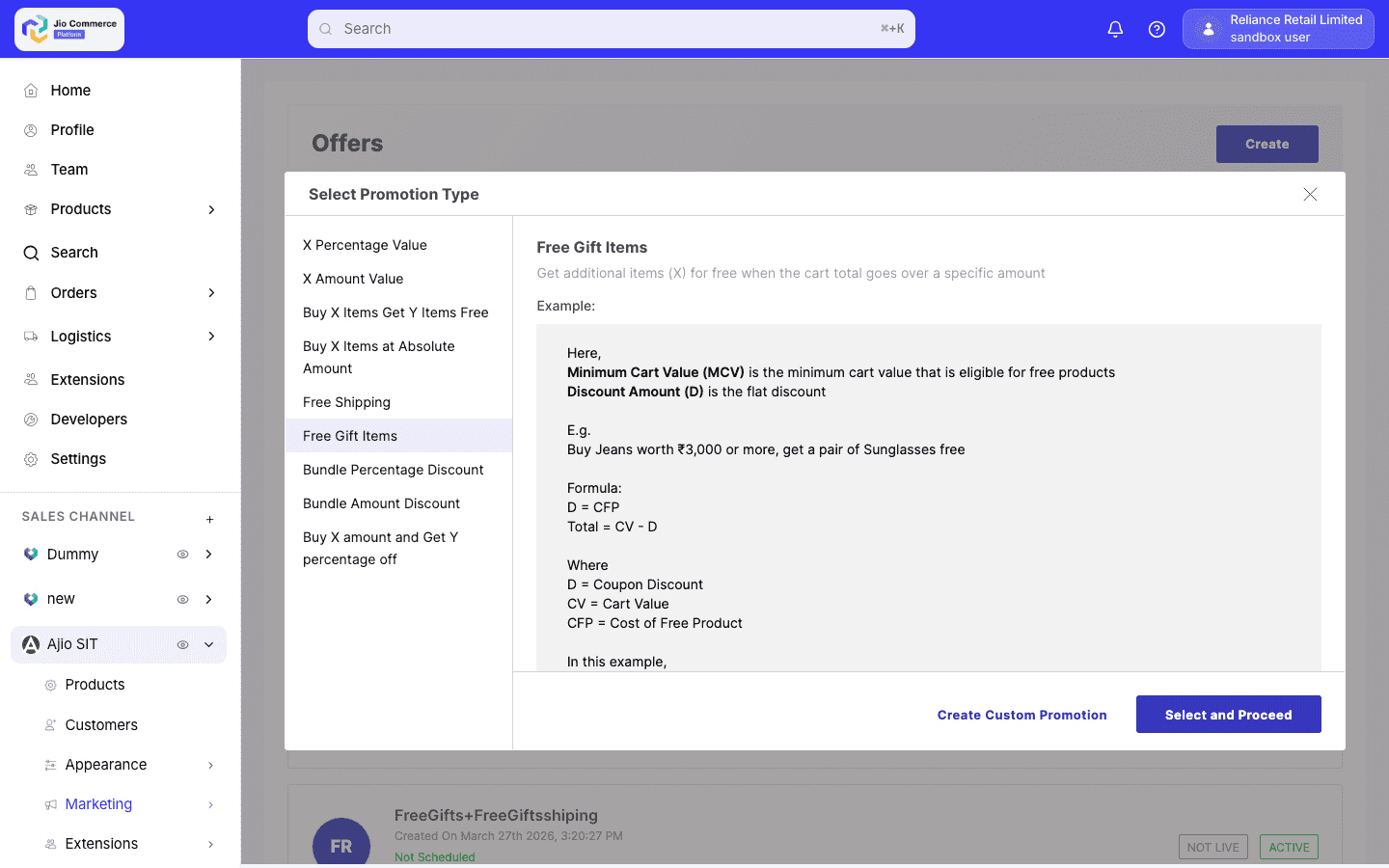
Select Free Gift Items from the promotion type list.
-
Fill in the basic details:
- Promotion Name — Display name (e.g., "Buy 2 Get Free Sample").
- Description — Detailed description.
- Offer Text — Short text shown on the storefront.
- Offer Label — Badge label (e.g., "Free Gift").
-
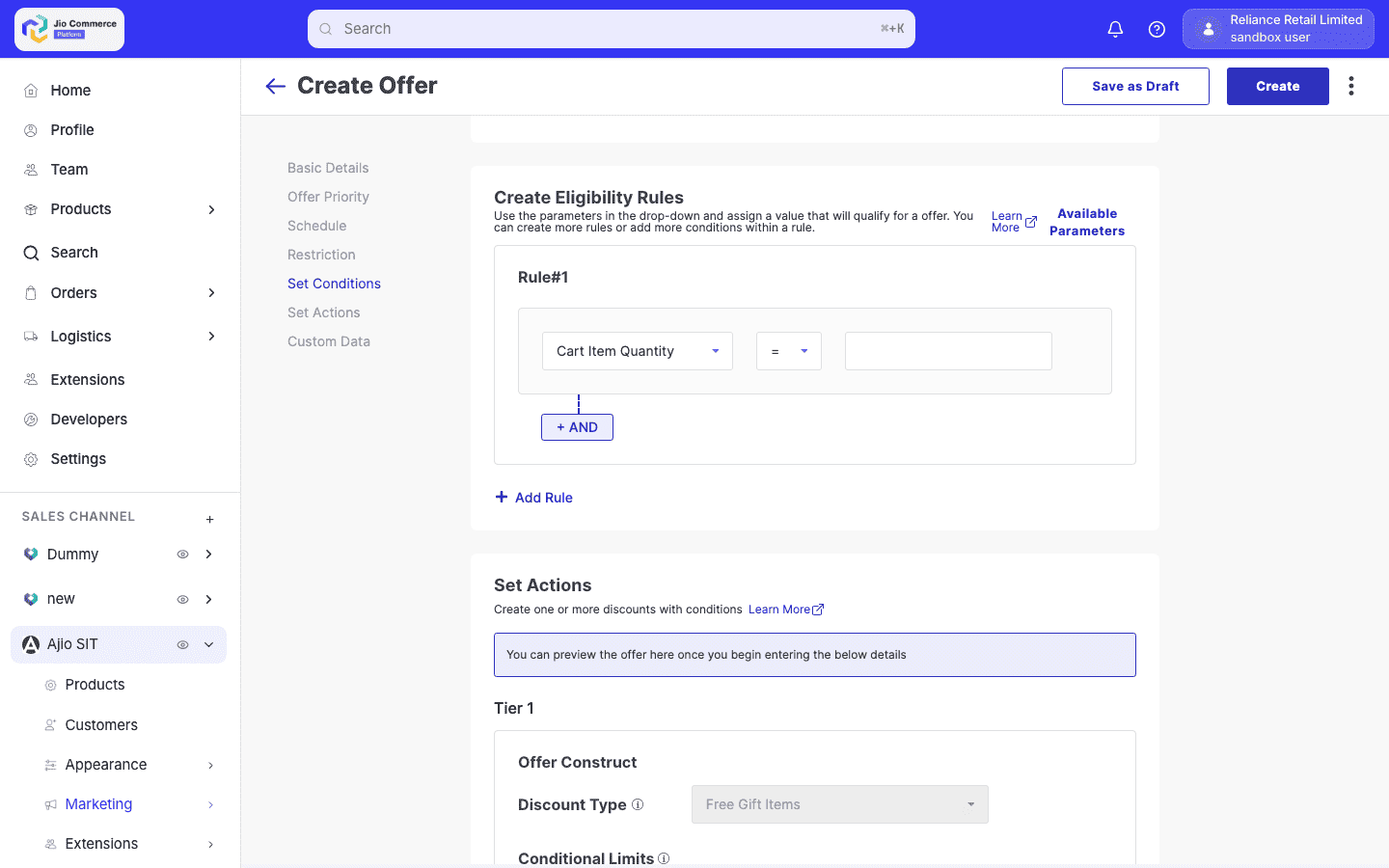
Configure the Buy Rules — the conditions that trigger the free gift:
- All Items — Apply to any purchase.
- Specific Brands — Customer must buy from specific brands.
- Specific Categories — Customer must buy from specific categories.
- Cart Quantity — Minimum number of items (e.g., "Buy 2 or more").
- Cart Total — Minimum cart value (e.g., "Orders above Rs. 1000").
You can create multiple named rules (e.g.,
rule#1,rule#2) and combine them with AND/OR logic in the buy condition.
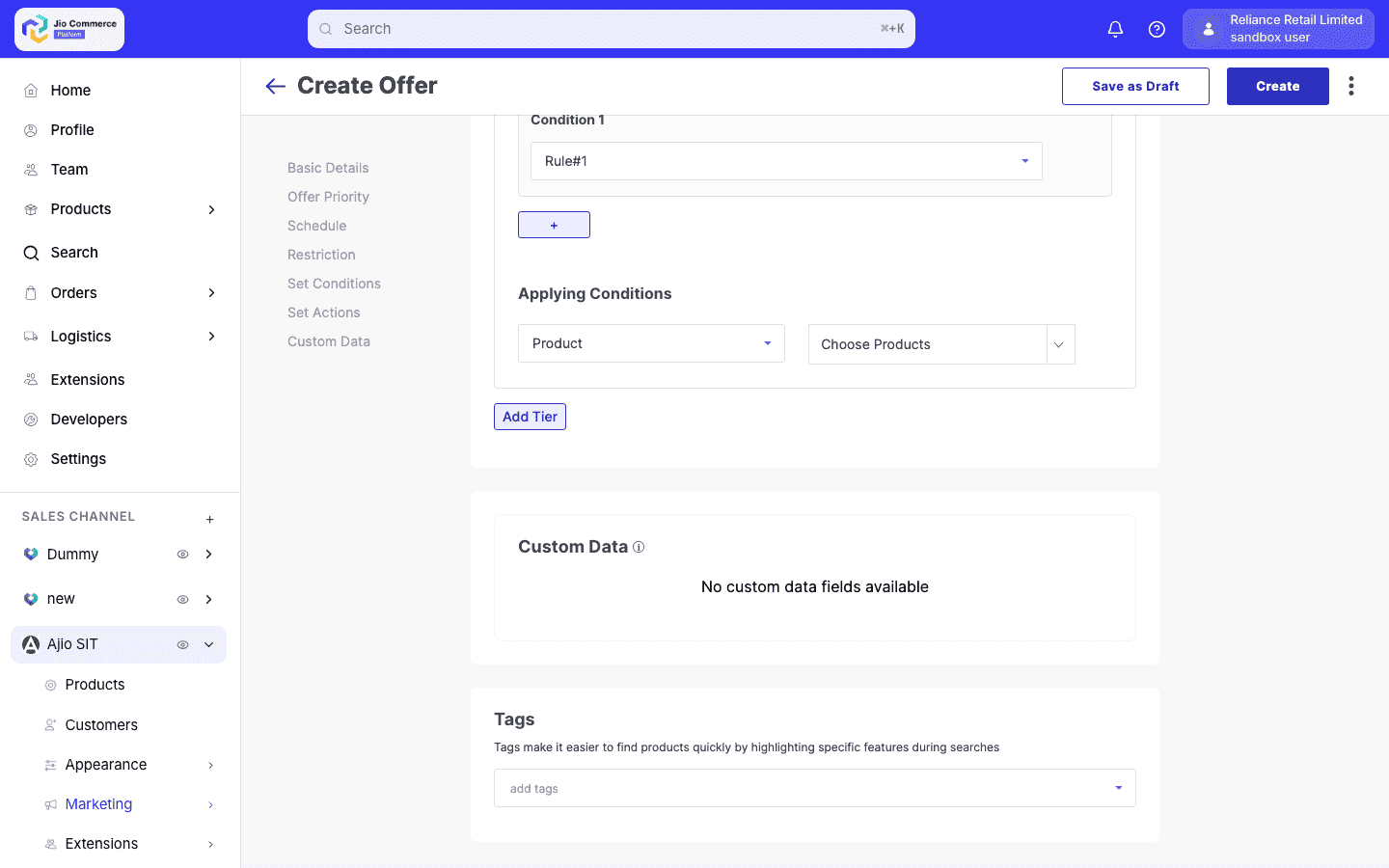
- Configure the Discount Rules:
- Discount Type — Set to Free Gift Items.
- Max Offer Quantity — The number of free items to give per qualifying condition match. This field is required.
- Max Usage Per Transaction (optional) — Caps the total number of times the free gift is added per cart.
- Buy Condition — Reference a buy rule (e.g.,
rule#1). - Item Criteria — Define which items are eligible as free gifts (by brand, category, specific item IDs, etc.).
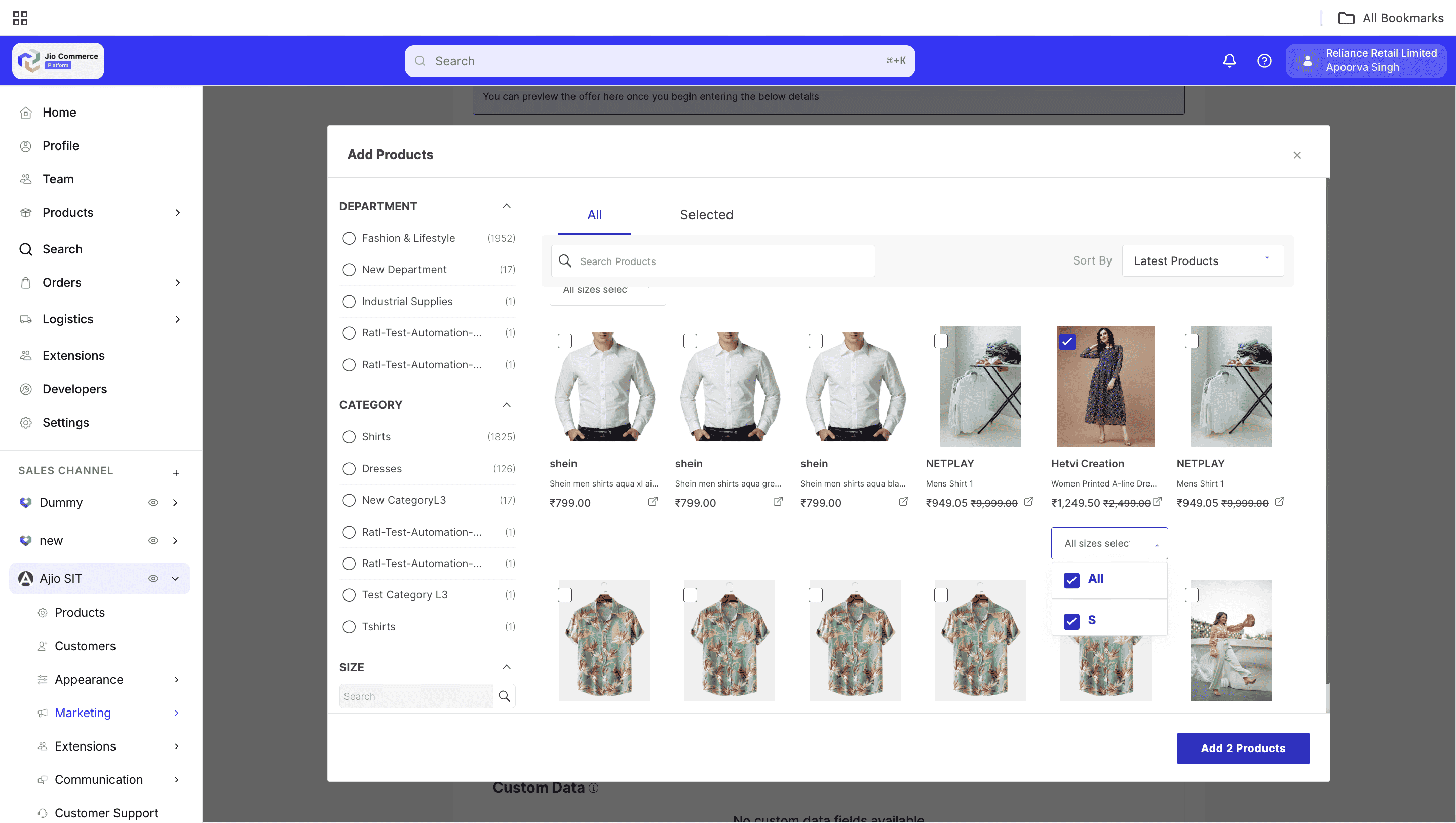
- Configure Size Restrictions (optional):
- Item Size Mapping — Restrict which sizes of the gift item are available. Specify allowed sizes per item ID.
- Example: Item 7502035 can only be given in sizes "OS" and "XL".
- If left empty, all available sizes of the gift item are eligible.
- Set Restrictions, Schedule, and Priority as needed, then set status to Approved to activate.
Size Selection for Free Gifts
When a free gift item has multiple sizes, the system determines which size to add using this priority order:
- Customer-selected size — If the customer has previously chosen a size for this gift, that preference is used.
- "OS" (One Size) — If available, One Size is selected as the default.
- Parent item's size — The size of the item that triggered the promotion.
- Other available sizes — Any remaining in-stock size.
How the Customer Changes Size
- The cart displays the free gift item with an Available Sizes list.
- The customer selects their preferred size.
- The system updates the cart with the new size selection.
- The size preference is saved and used for future cart recalculations.
If the customer's preferred size goes out of stock between cart view and checkout, the system automatically selects the next available size in the priority order.
Discount Apportionment
The Apportion Discount setting controls how the free gift discount is distributed:
-
Apportion Discount: On (default) — The discount value of the free gift is distributed across all items in the cart (both purchased items and the free gift). This results in a smaller per-item discount spread across more items.
-
Apportion Discount: Off — The discount is applied exclusively to the free gift item. Purchased items show no discount from this promotion.
For most free gift promotions, leaving Apportion Discount set to its default is recommended. Turning it off isolates the discount to the free item only.
How Free Gifts Appear in the Cart
When a free gift promotion is triggered, the customer sees:
- The free gift item in their cart with:
- Product name, image, and brand
- Price showing Rs. 0 (effective price)
- Original price shown as crossed out
- Available sizes (if multiple)
- A "Free Gift" badge or label
- The promotion name and offer text in the applied promotions section.
The free gift item is marked internally with is_free_gift_item: true to distinguish it from regular cart items.
Quantity Scaling
Free gift quantities scale based on how many times the buy condition is satisfied:
| Cart Quantity | Buy Condition | Times Matched | Max Offer Qty | Free Gifts Added |
|---|---|---|---|---|
| 2 items | Buy 2+ | 1 | 1 | 1 |
| 5 items | Buy 2+ | 2 | 1 | 2 |
| 10 items | Buy 2+ | 5 | 1 | 5 |
| 10 items | Buy 2+ | 5 | 2 | 10 |
If Max Usage Per Transaction is set (e.g., 3), the scaling is capped:
| Cart Quantity | Buy Condition | Times Matched | Max Usage/Txn | Max Offer Qty | Free Gifts |
|---|---|---|---|---|---|
| 10 items | Buy 2+ | 5 | 3 | 1 | 3 |
| 10 items | Buy 2+ | 5 | 3 | 2 | 6 |
Limitations
- No nested gifts — A free gift item cannot trigger another free gift promotion. Items marked as free gifts are excluded from triggering further promotions.
- Same store only — The free gift item must be available at the same store as the purchased item. Cross-store gifts are not supported.
- Stock-dependent — If the free gift item is out of stock in all eligible sizes, it will not be added to the cart.
- Parent item removal — If the customer removes the item that triggered the promotion, the free gift is removed on the next cart recalculation.
In some environments, multiple free gift promotions stacking on the same cart may be restricted. When restricted, only one free gift promotion applies per cart.
Post-Order Behaviour
The Post-Order Restrictions in the promotion configuration control what happens after the order is placed:
- Return Allowed — Whether the customer can return the free gift item.
- Cancellation Allowed — Whether the customer can cancel the order containing the free gift.
These settings apply specifically to the free gift item and can differ from the main order's return/cancellation policy.